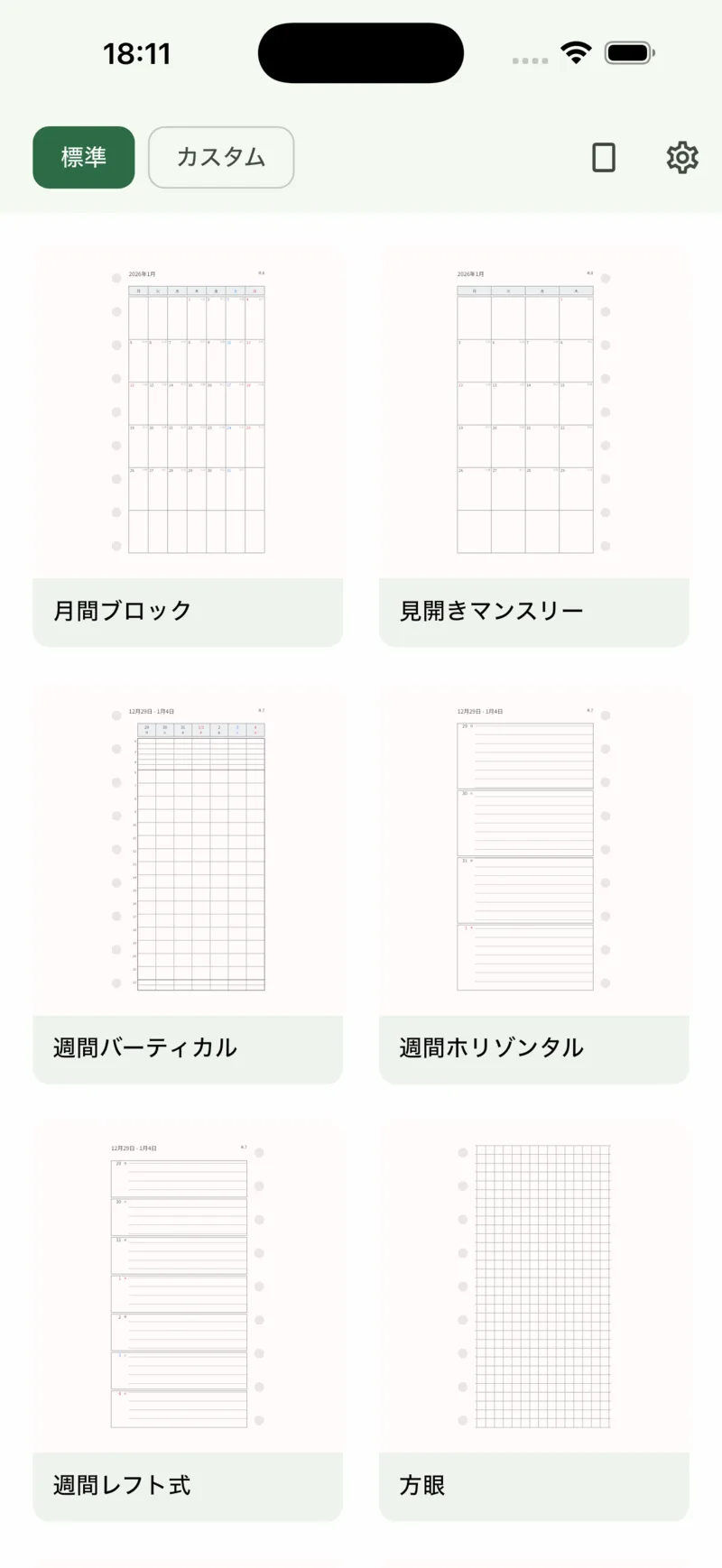
Monthly, weekly, grid and dot pages are built in. If the one you want isn't there, build it yourself.
 Mékery
So make it. Lay out the page on your phone, print it at home at actual size, cut along the marks, punch the holes, and it drops straight into the binder you already use.

Try it in your browser — design a page first; PDFs are exported in the app.
Free. No account, no sign-in. Your pages stay on your device.
Nothing to configure. Whether you pick a ready-made page or build your own, everything from printing onward is the same.
Monthly, weekly, grid and dot pages are built in. If the one you want isn't there, build it yourself.
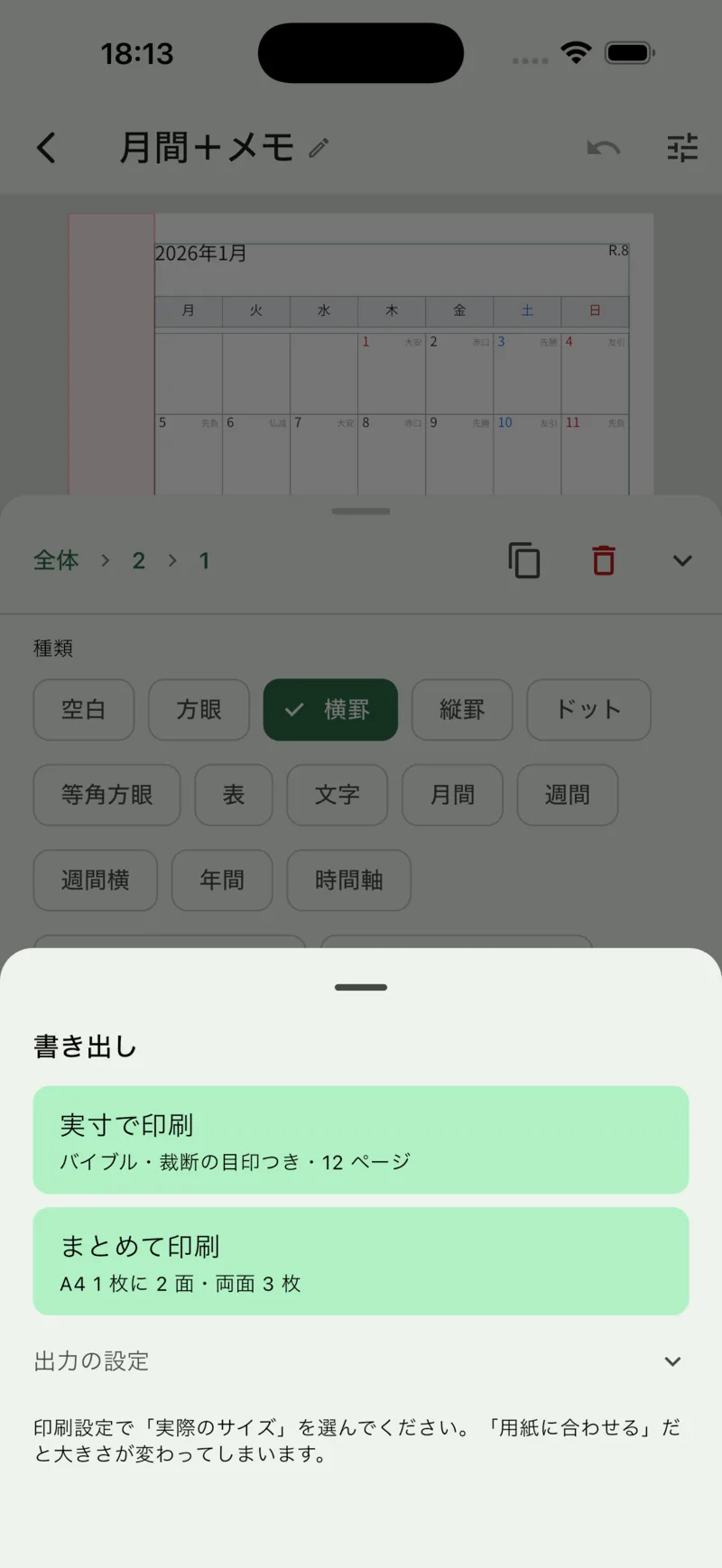
Print at "actual size" and the lines and the holes land exactly where they should. Tile several pages on one A4 or Letter sheet if you like.
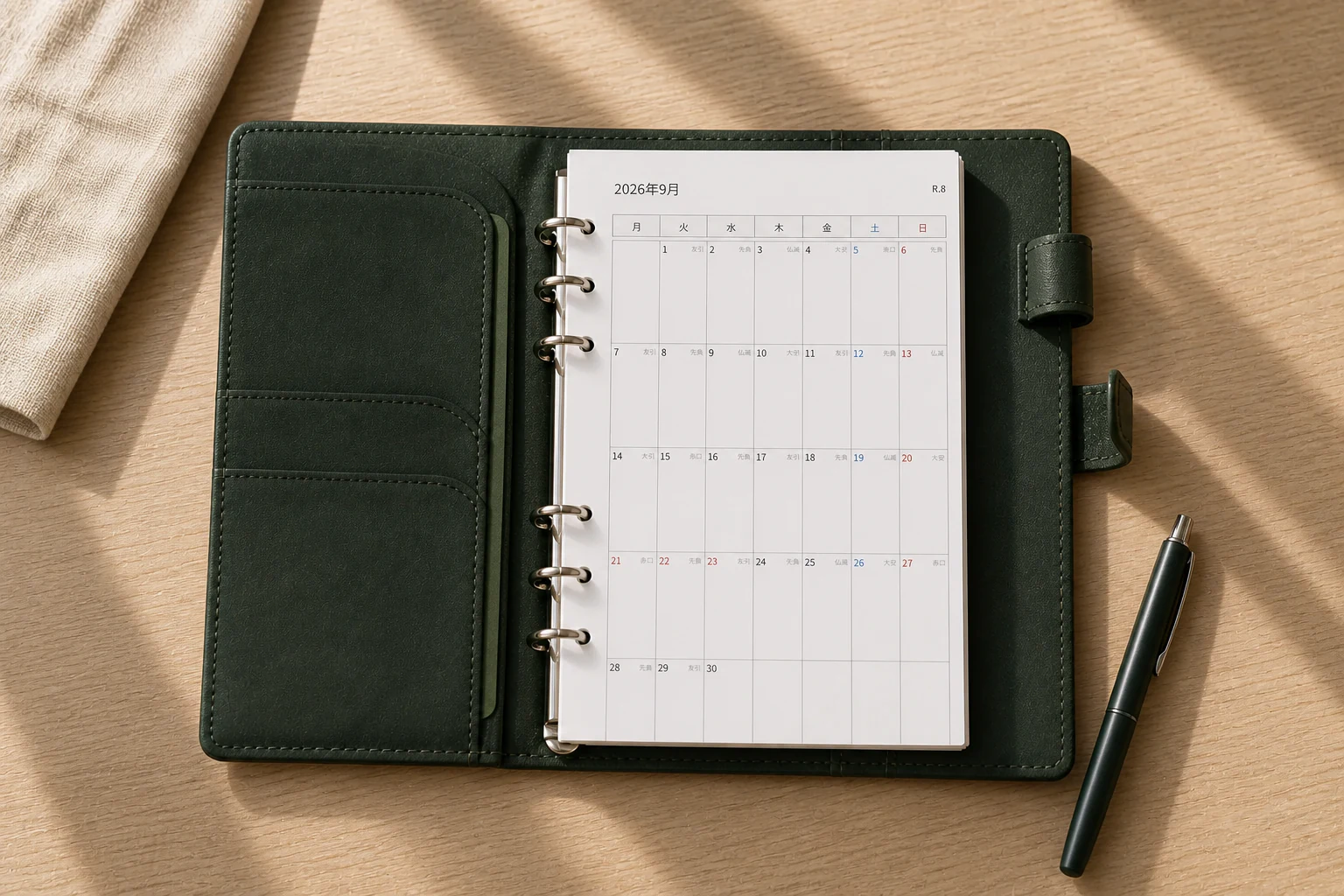
Cut along the trim marks and punch the holes. The ring side is kept clear, so the holes never cut through a line.
Every image here is real output. Line spacing runs from 2.5 mm to 10 mm in 0.5 mm steps.
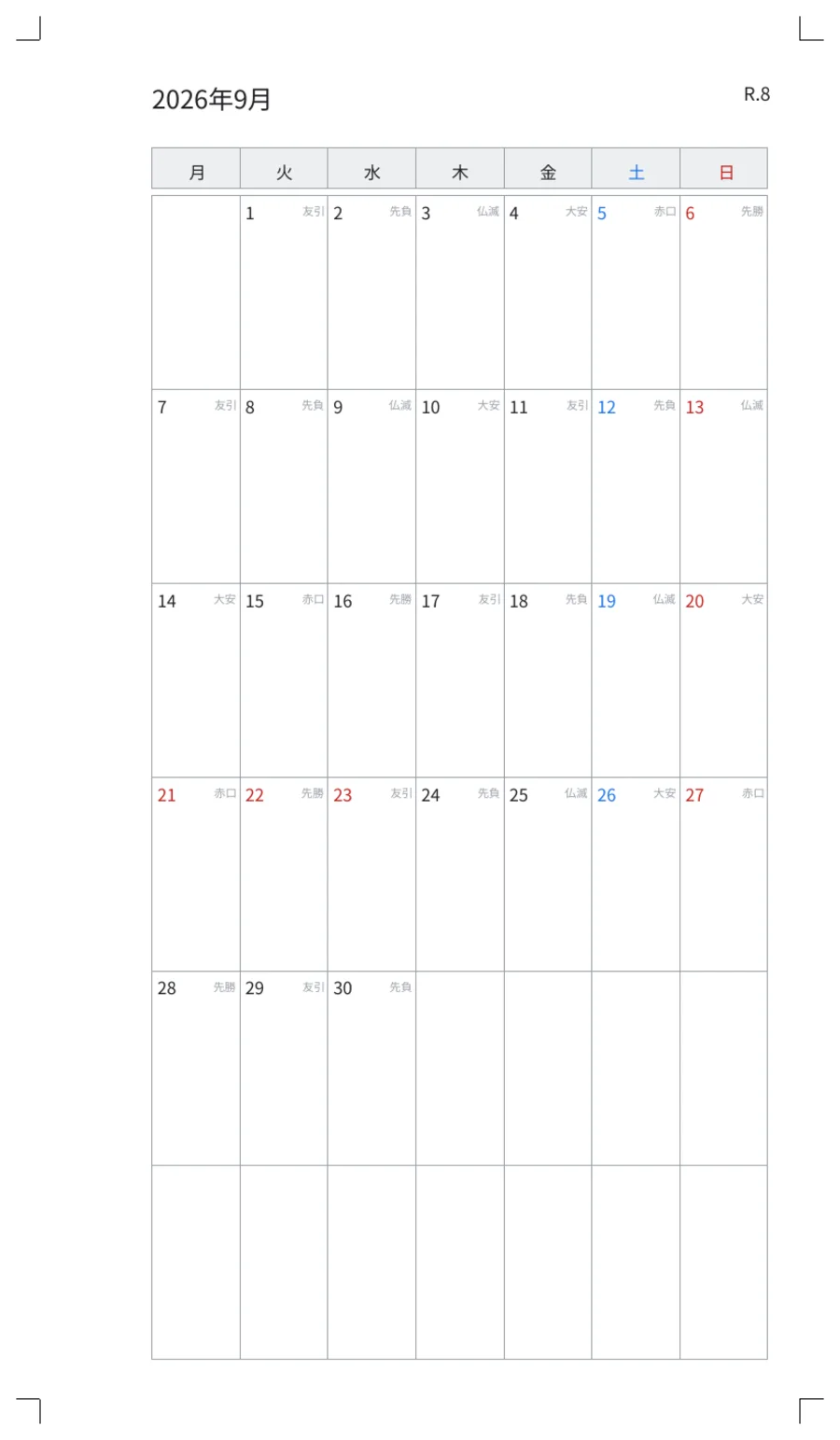
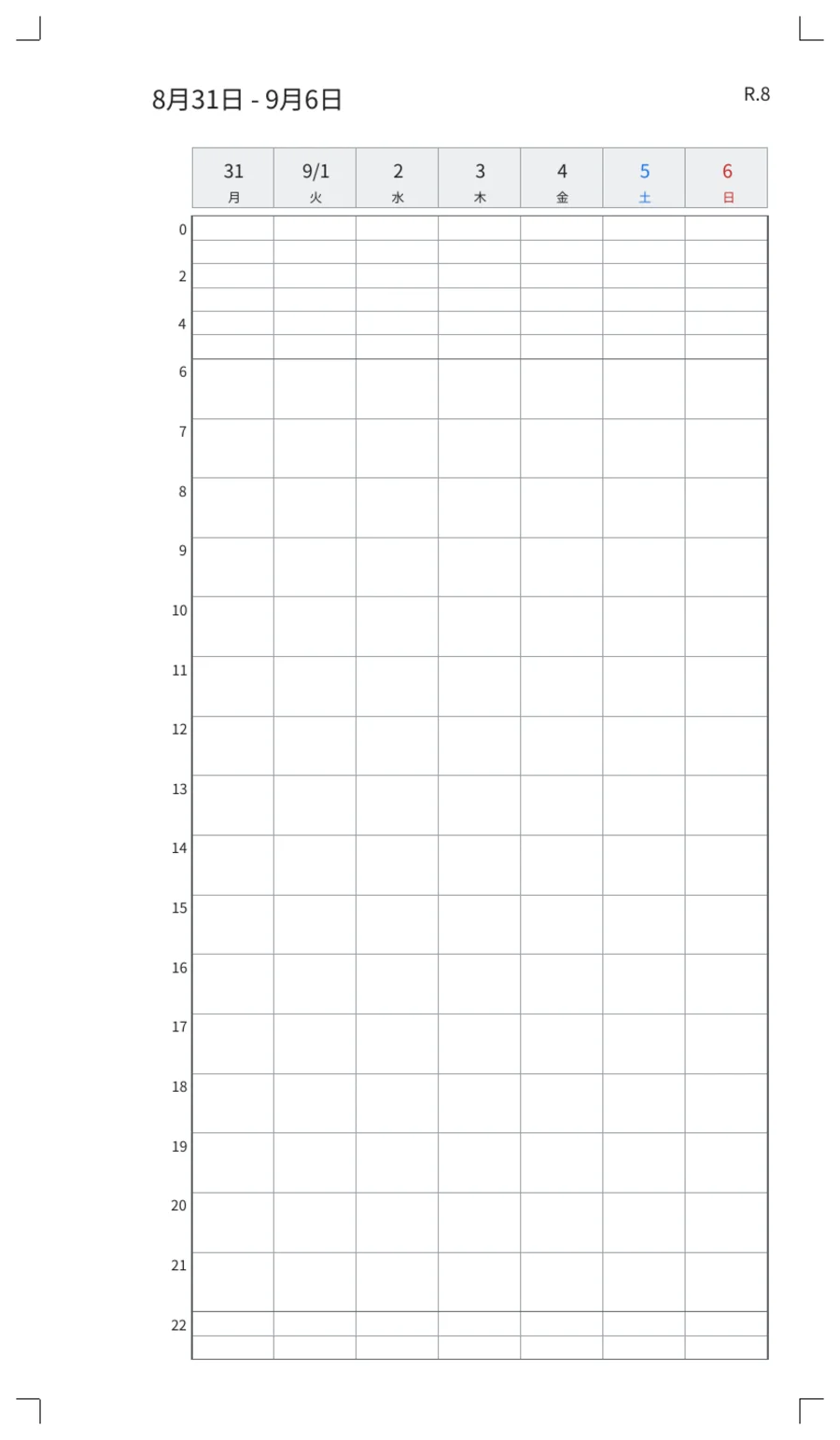
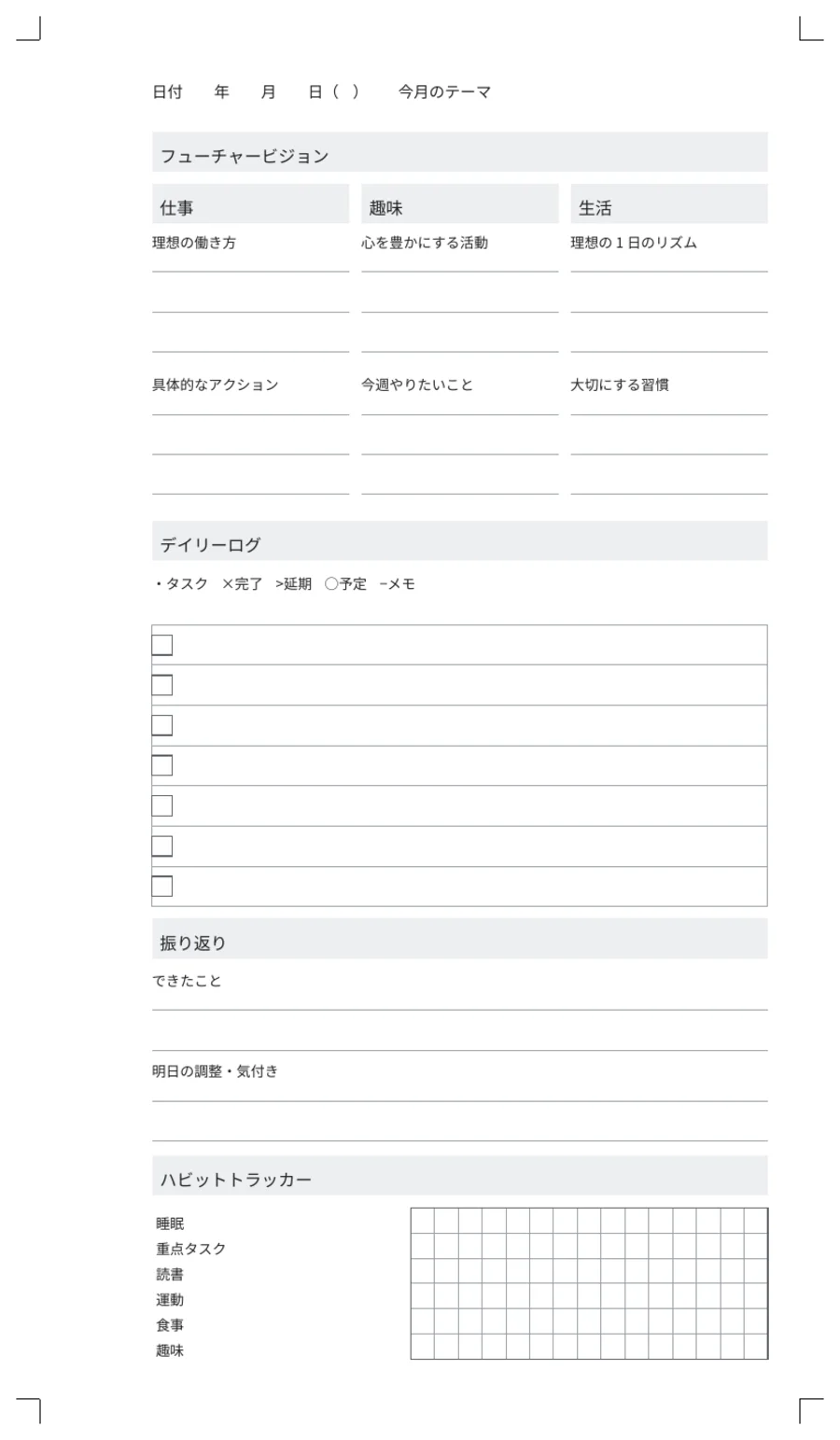
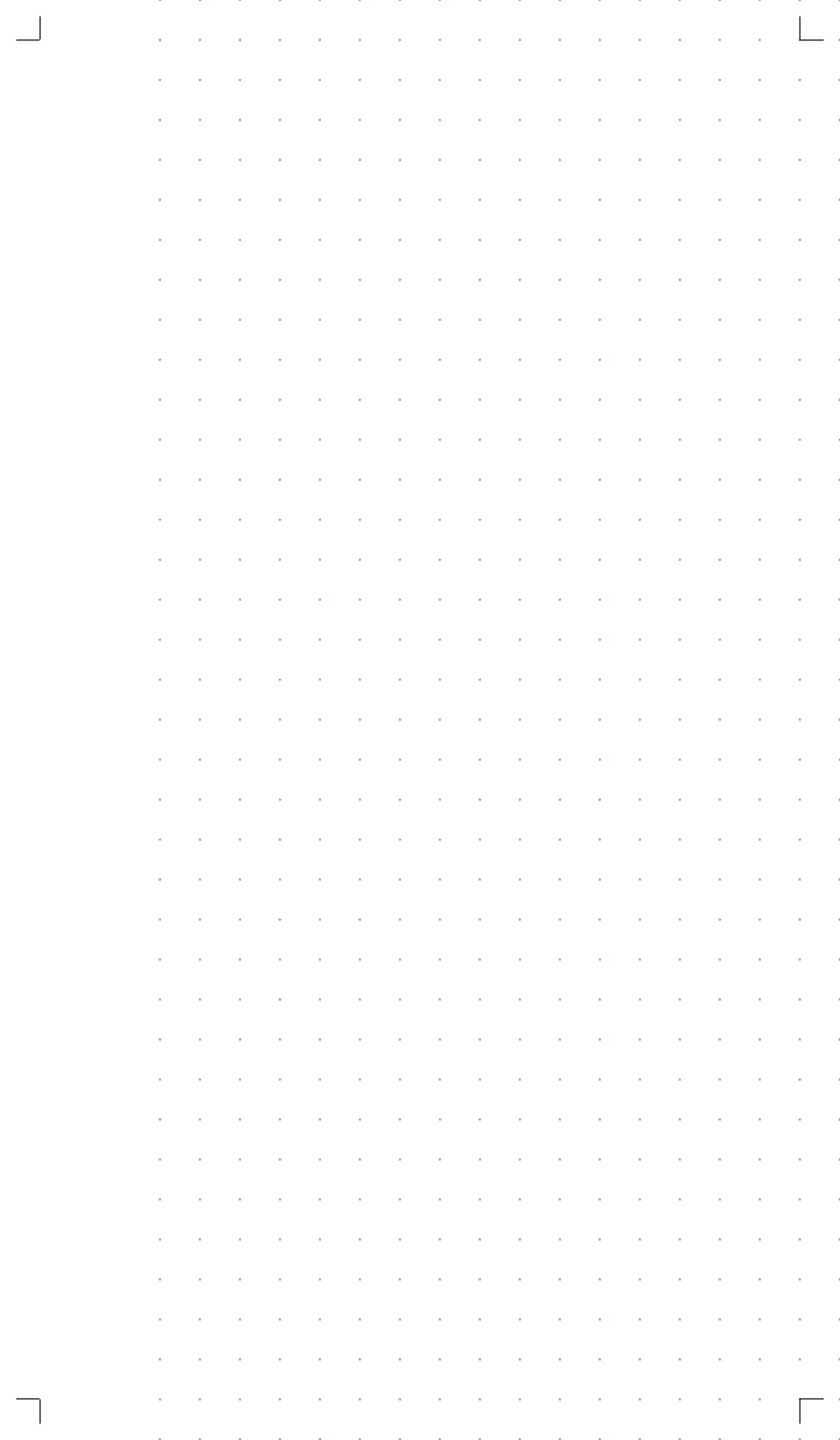
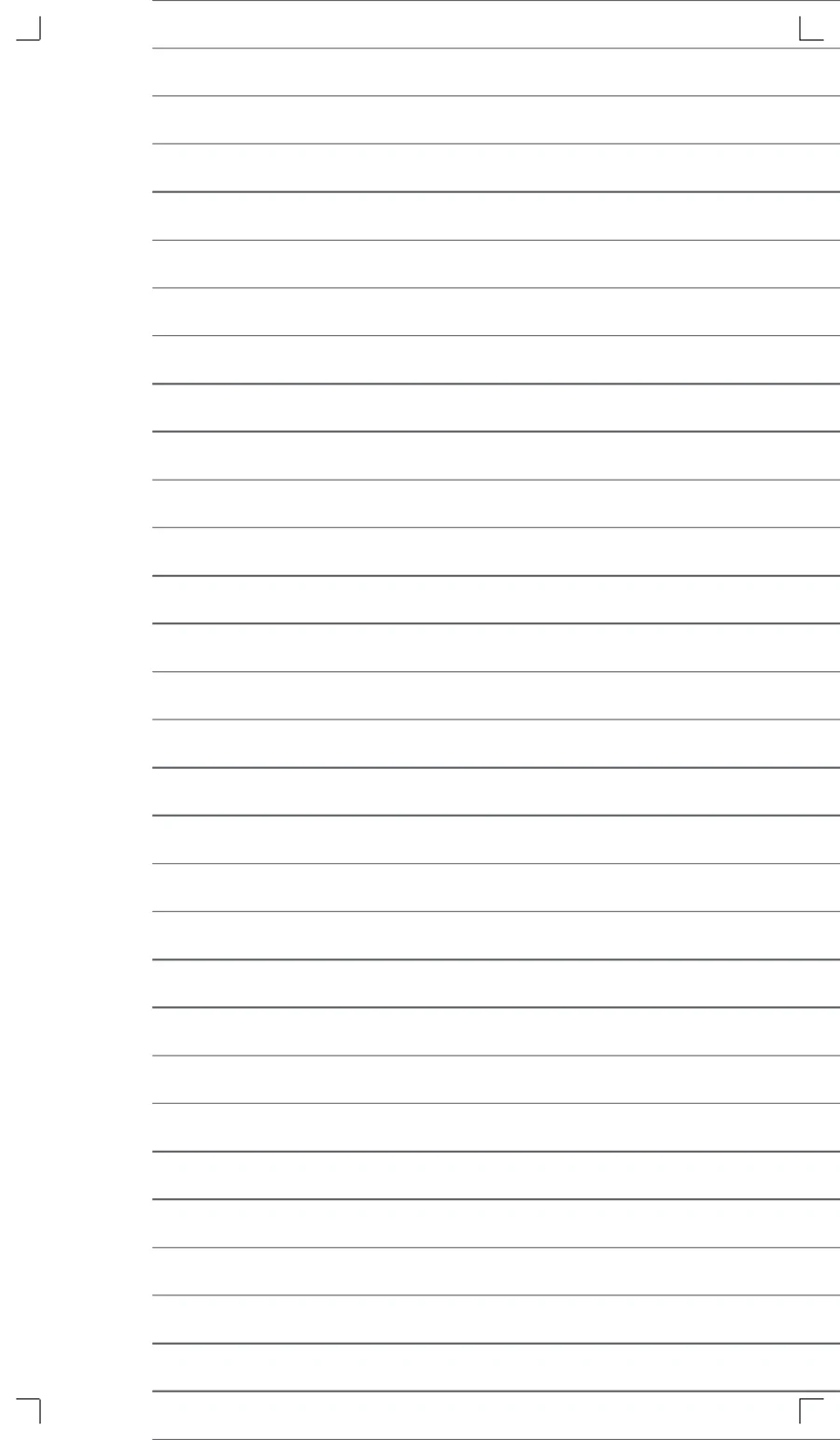
Also a two-page monthly, horizontal and left-page weeklies, a year at a glance, hourly schedules, habit trackers, isometric grid, columns and more. New pages arrive without waiting for an app update.
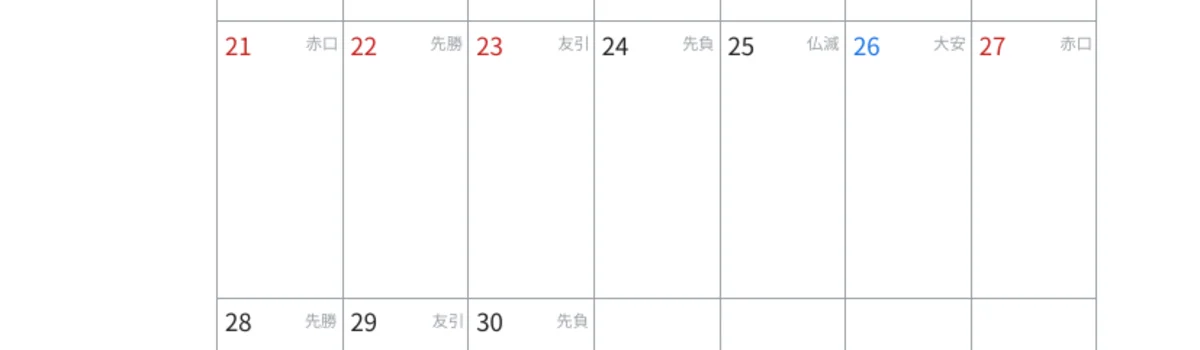
Japanese public holidays in color, the imperial era year, and rokuyō — the six-day luck cycle printed in Japanese planners — all come with the dated pages. Substitute holidays and bridge holidays are calculated the way the law defines them.
Rokuyō is computed astronomically from the lunisolar calendar, so it stays correct across years. Weeks can start on Monday or Sunday. Prefer plain English pages? Turn all of this off.
You don't change your binder to suit the app; the page is made to suit the binder. The diagram below is to scale.
Enter a width and height in millimeters to add a size that isn't listed.
No lines are drawn where the rings sit. The margin adjusts in 0.1 mm steps, so it can match the rings you own.
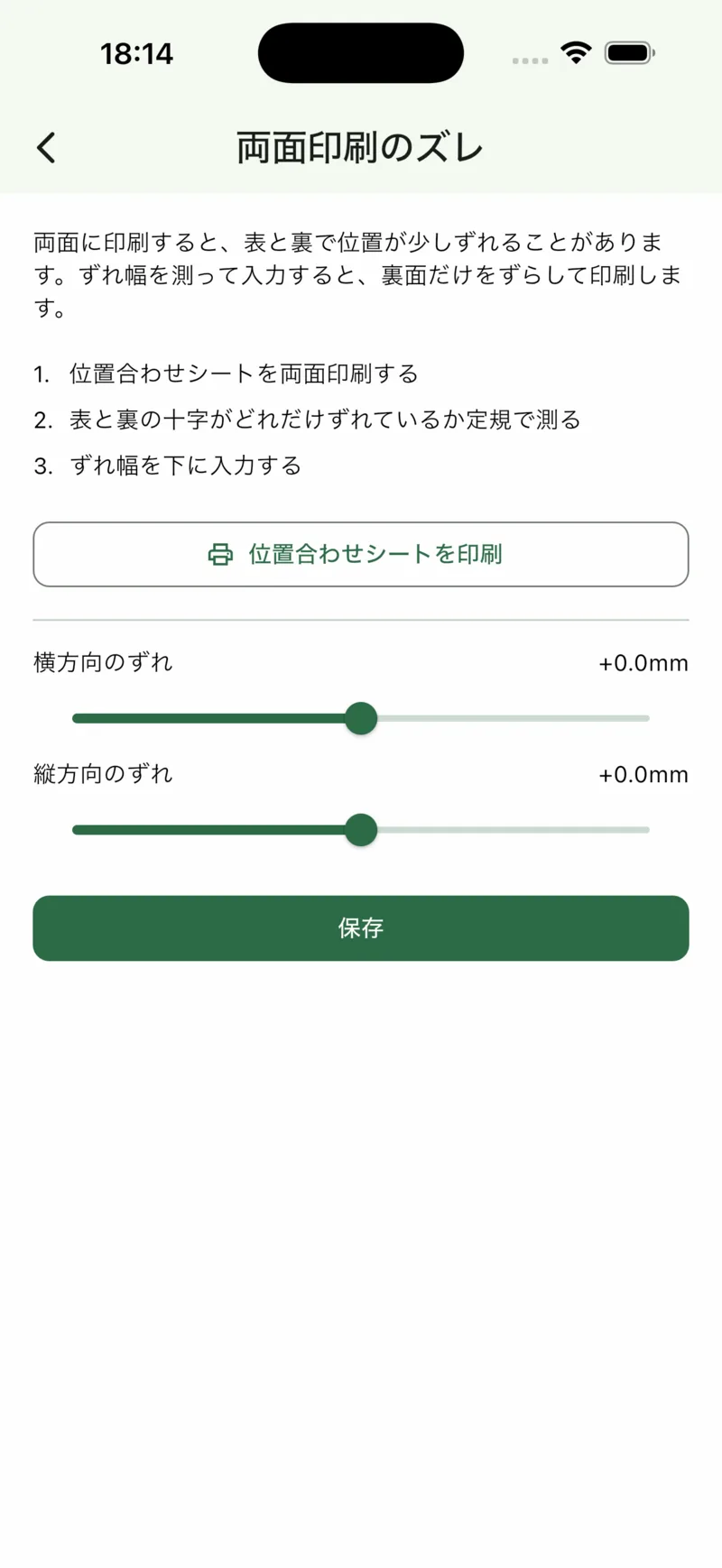
Home printers shrink a page slightly and shift the back side a little. Print one calibration sheet, measure it with a ruler, enter the values once, and every page after that comes out right.
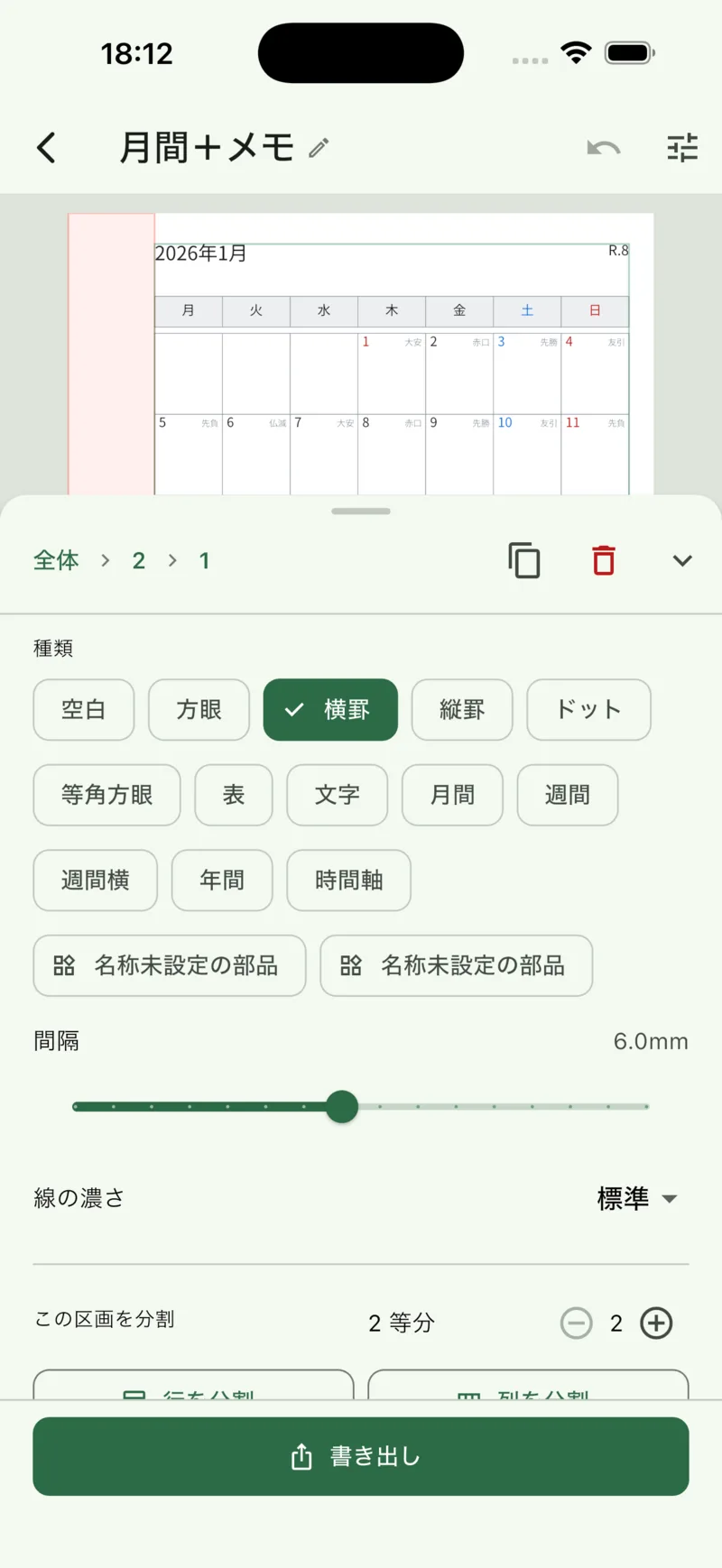
Split the page across or down. Split a block again. That is the whole technique — and any block can hold a grid, lines, a table, text, or a monthly or weekly calendar.
Choose "actual size" (100%) in the print dialog. "Fit to page" shrinks the sheet and the holes no longer line up. If a millimeter or so is still off after that, print the calibration sheet, measure it, and enter the values under Calibration.
First check that the binding option is set to "long edge". Then print the calibration sheet double-sided, measure how far the front and back crosshairs are apart, and enter that as the back-side offset. Every printer is different, so the app ships with 0.
All of it: the editor, every size, PDF export and the double-sided correction. The only purchase is a one-time option to remove the ads, and it changes nothing else. Ads appear only on the list and export screens, never while you edit.
Only on your device. There is no account and no sign-in, and neither your designs nor your PDFs are sent anywhere. To move to another device, export a design to a file and import it there.
No. Pages come in English with plain weekday names, and the holidays, era year and rokuyō are each a switch you can leave off.
iPhone, iPad and Android. Free.